Post

LLM Integration

LLM Integration for Krill — A Practical Guide to Local Models with Ollama

LLM Integration

Integrating Large Language Models (LLMs) into Your Swarm

We added the ability to add an LLM Node to your swarm so if you run a local LLM and Krill Server on the same machine, Krill has some specialized prompts and meta data to have a back and forth conversation with it based on your prompts and perform some basic automations.

Shipped: Chat with local LLMs and create nodes from natural language prompts.
Experimental: Agentic actions (CREATE_LINKS to wire source/target connections, UPDATE_NODE to modify metadata) are implemented but still maturing. See the roadmap for current status.

You can install a local LLM on any machine in your network and have your Krill swarm interact with it — no cloud API keys, no subscription, and your data never leaves your network. Select nodes in the Krill App, type a prompt, and the LLM will work back and forth with Krill to complete the task while giving you live feedback along the way.

llm

Use cases include:

  • Troubleshooting — “Why is this sensor reading wrong?”
  • Automation design — “Build me a logic chain that turns the pump on when the tank is low”
  • Dashboard generation — “Create an SVG dashboard for these nodes”
  • Safety review — “Is this automation safe? What could go wrong?”
  • Learning — “Explain this node graph to me like I’m new to Krill”

Getting Started

1. Install Ollama

On a machine with a GPU (or even a Raspberry Pi — see below), install Ollama. It’s a single command:

1
curl -fsSL https://ollama.com/install.sh | sh

2. Pull a model

Pick a model that fits your hardware (see the recommendations below):

1
2
3
ollama pull mistral-small3.2:24b   # for a 24 GiB GPU
# or
ollama pull gemma3:4b              # for a smaller GPU or Pi hat

3. Start Ollama

1
ollama serve

4. Add an LLM Node in Krill

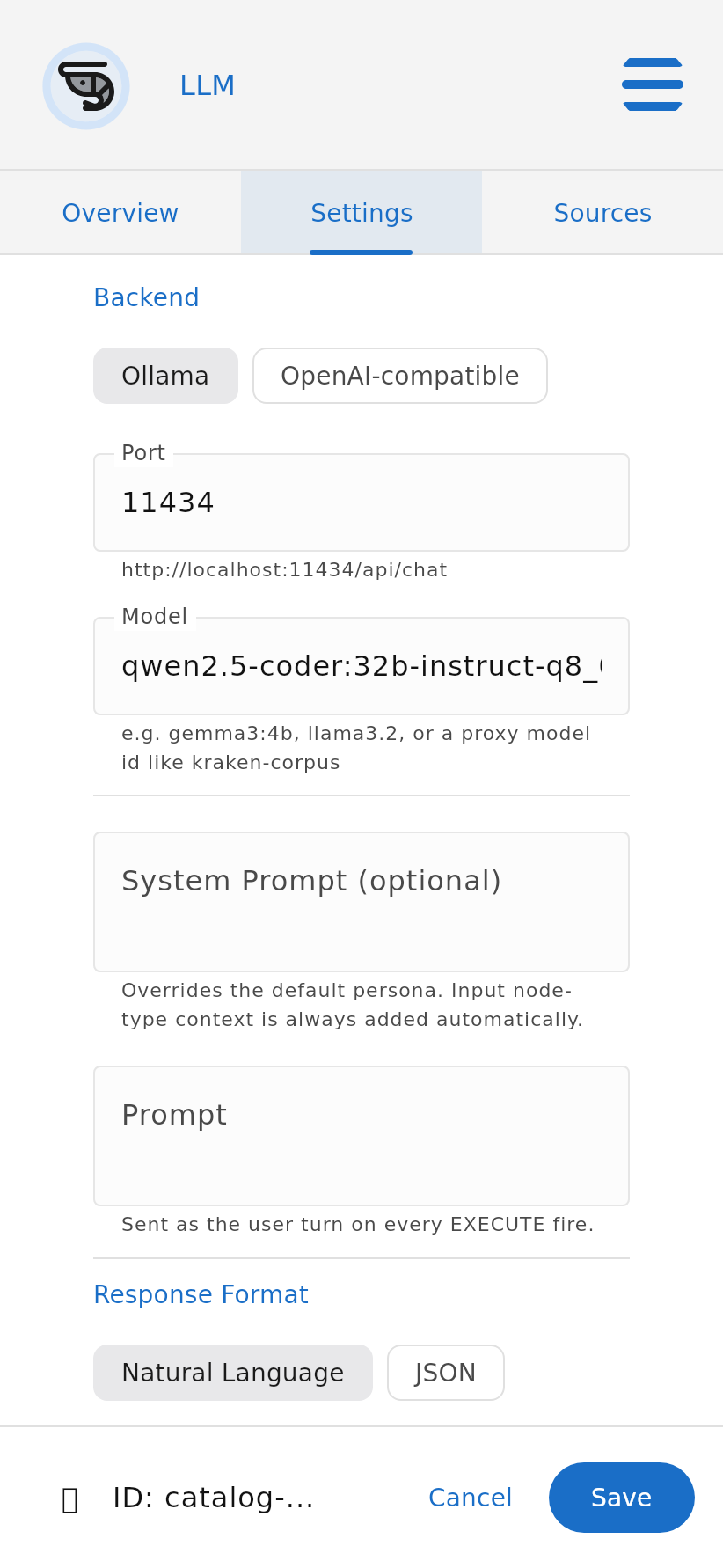
Install Krill Server on the same machine (or any machine that can reach the Ollama port), then add an LLM Node in the Krill App. Set the host, port (default 11434), and model name. That’s it — you’re connected.

5. Start prompting

Select the nodes you want to work with, open the LLM panel, and type your prompt. Krill will send your selected nodes as context along with your prompt, then show you the LLM’s response in real time. If the model needs more information, Krill will automatically gather it and continue the conversation until the task is done.

We’re just getting started and would love to hear what you’d like to see Krill do with LLMs!


Raspberry Pi AI HATs & Coral TPU (no discrete GPU)

If you’re already running Krill on a Raspberry Pi, you can add lightweight AI directly on the same device using a Pi AI HAT or a Coral USB/M.2 TPU. These won’t run the biggest models, but they’re perfect for quick, focused tasks.

Hardware options:

Suggested models:

  • gemma3:1b — tiny and responsive
  • llama3.2:1b — lightweight dialogue
  • qwen3:0.6b — extremely small, good for simple lookups

What you can do:

  • “What does this error code mean?”
  • “Summarize the state of these three sensors”
  • “Convert this temperature from Celsius to Fahrenheit and tell me if it’s in range”
  • Quick keyword extraction and simple formatting tasks

Tip: Pi-based inference is best for short, single-turn prompts. For multi-step reasoning or dashboard generation, pair your Pi with a desktop GPU elsewhere on the network.


Small GPU / Laptop iGPU / Older NVIDIA (6–10 GiB VRAM)

Great for quick answers and single-turn tasks.

Suggested models:

  • gemma3:4b — multimodal, 128k context window
  • llama3.2:3b — fast dialogue and summarization
  • gemma3n:e4b — designed for everyday devices

What you can do:

  • “Explain this sensor error”
  • “Summarize the state of these nodes”
  • “Draft a first version of the logic I need”
  • Quick natural-language lookups against your node data

Mid-Range NVIDIA GPU (12–16 GiB VRAM — e.g. RTX 4060 Ti, 4070, 4080 Laptop)

Strong enough for multi-step back-and-forth conversations and more complex tasks.

Suggested models:

  • gemma3:12b — strong general-purpose local model
  • deepseek-r1:14b — excellent reasoning for the size
  • qwen3:14b — good all-around performer

What you can do:

  • Multi-step troubleshooting (“Why is this value wrong? Check upstream nodes, then suggest a fix”)
  • Drafting logic gate chains from plain-English descriptions
  • Proposing an SVG dashboard layout, then refining it in follow-up turns

Strong Single-GPU Desktop (24 GiB VRAM — e.g. RTX 4090, RTX 5090 Laptop)

This is the sweet spot for Krill. Models at this tier can handle complex, iterative tasks with rich context.

Suggested models:

  • mistral-small3.2:24bour top recommendation — fits a single RTX 4090 and handles nearly every Krill workflow
  • qwen3:30b — stronger model if you can tolerate slightly slower responses
  • deepseek-r1:32b — best reasoning depth at this tier
  • gemma3:27b — capable multimodal generalist (can work with images)

What you can do:

  • Complex automation design with back-and-forth clarification
  • Generating polished SVG dashboards from selected nodes
  • Safety reviews of proposed automation logic
  • Extended troubleshooting sessions across many nodes

Very Large VRAM / Multi-GPU / Server-Class

Only needed for unusually large tasks — most Krill workflows are well served by the 24 GiB tier.

Suggested models:

  • qwen3:30b to qwen3:235b
  • deepseek-r1:70b

What you can do:

  • Everything above, plus very large node graphs, extended agent-style sessions, or heavy code generation

Quick Recommendation Table

HardwareRecommended ModelBest For
Pi AI HAT / Coral TPUgemma3:1bQuick lookups, simple formatting
Small GPU / older laptopgemma3:4bSensor explanations, summaries
12–16 GiB VRAMdeepseek-r1:14bMulti-step troubleshooting, logic drafts
24 GiB VRAMmistral-small3.2:24b⭐ Best overall for Krill
24 GiB VRAM (reasoning focus)deepseek-r1:32bDeep reasoning, safety reviews
24 GiB VRAM (multimodal)gemma3:27bImage-aware tasks
Multi-GPU / serverqwen3:30b+Large-scale or specialized workloads

Our default recommendation: If you have a good NVIDIA GPU with 24 GiB VRAM, start with mistral-small3.2:24b. It’s the best balance of capability, speed, and single-GPU fit for Krill.


Example Prompts

Below are real prompts you can try in the Krill App. Select your nodes first, then type the prompt in the LLM panel. Krill will handle the back-and-forth automatically.

🔧 Sensor Troubleshooting

Explain why this sensor is reporting an error. Tell me the most likely cause first, then the second most likely, and suggest specific checks I can perform.

What to expect: A plain-English explanation with a probable fault tree and concrete next steps — no made-up hardware details.


⚡ Logic Gate Generation

Create a series of logic gates that will turn Raspberry Pi pin 17 on when either DoorOpen or MotionDetected is true, but only if Armed is true and WaterLeak is false.

What to expect: The LLM will ask clarifying questions (edge-triggered vs. continuous? invert WaterLeak?), then return a step-by-step logic plan followed by a user-friendly explanation.


📊 SVG Dashboard Generation

Create an SVG dashboard for the selected nodes. Use a clean dark theme. Show tank temperature, pH, water level, pump status, and a warning banner if any node is in an error state.

What to expect: The LLM will ask about dimensions and colors, then produce a ready-to-use SVG with placeholders for live values.


🛡️ Safety Review

Review this automation and tell me if it is safe: open the solenoid when TankLow is true and close it when TankHigh is true. Consider race conditions, missing fail-safes, and sensor disagreement.

What to expect: The LLM will surface failure modes (what happens if both sensors are active?), ask about reboot defaults and manual overrides, and propose a safer design with watchdogs.


📖 “Teach Me What’s Happening”

Explain this node graph to me as if I were new to Krill. Start with what the selected nodes do, then explain how state flows through the graph, then suggest one improvement.

What to expect: A friendly walkthrough that converts raw node data into a human-readable explanation — great for onboarding and documentation.


Prompting Tips

Be specific about what you want back

The more constraints you give, the better the result:

  • “Return only SVG”
  • “Return JSON with fields x, y, z”
  • “Give me a concise plan first, then the details”
  • “Do not invent node IDs — only use the ones I selected”

Let the LLM ask questions

Prompts work best when you let the model say “I need a few more details before I can finish.” Krill will automatically gather what it needs and keep the conversation going. One-shot answers are usually less accurate than a quick back-and-forth.

Start small, then expand

Begin with a focused prompt about a few nodes. Once you’re happy with the result, try larger selections and more complex requests.


Tuning & Troubleshooting Your Local LLM

Verify the GPU Is Being Used

Don’t assume Ollama is using your GPU just because it’s installed. Run these checks:

1
2
3
4
5
6
7
8
# List detected GPUs
nvidia-smi -L

# Check which model is loaded and GPU offload percentage
ollama ps

# Watch VRAM usage during a request
nvidia-smi

What you want to see:

  • nvidia-smi -L lists your GPU
  • ollama ps shows your model at 100% GPU
  • nvidia-smi shows VRAM in use while Krill is chatting

For most Krill setups, add these to your Ollama systemd override (or environment):

1
2
3
4
5
6
[Service]
Environment="OLLAMA_HOST=127.0.0.1:11434"
Environment="OLLAMA_KEEP_ALIVE=1h"
Environment="OLLAMA_NUM_PARALLEL=1"
Environment="OLLAMA_MAX_LOADED_MODELS=1"
Environment="OLLAMA_CONTEXT_LENGTH=16384"
SettingWhat It Does
OLLAMA_KEEP_ALIVE=1hKeeps the model warm in VRAM so repeated requests are fast
OLLAMA_NUM_PARALLEL=1Prevents multiple requests from fighting over the GPU
OLLAMA_MAX_LOADED_MODELS=1Only one model in memory at a time
OLLAMA_CONTEXT_LENGTH=1638416k context — enough for most Krill tasks

When to increase context: Use 32768 if you’re working with large node graphs or long multi-turn conversations. Use 65536+ only for heavy code generation tasks. Larger context uses more VRAM.


GPU Not Detected?

If nvidia-smi -L says “no devices found” or Ollama falls back to CPU:

CheckFix
NVIDIA driver not installedInstall the correct driver for your card
Secure Boot blocking the driverDisable Secure Boot in BIOS or sign the kernel module
RTX 50-series / Blackwell on LinuxUse the open NVIDIA kernel modules
Just changed driver packagesReboot after installing
Laptop with hybrid/switchable graphicsSwitch to dGPU-only mode, or verify with nvidia-smi -L that the GPU is accessible

Context Window & VRAM

Ollama automatically sizes the context window based on available VRAM:

Available VRAMDefault Context
Under 24 GiB4k
24–48 GiB32k
48+ GiB256k

These defaults work well for most cases. Override per-request if you need more — but remember that larger context = more VRAM used.


Measuring Performance

To understand how well your setup is working, pay attention to:

  • Response time — How long until you see the first tokens?
  • Tokens per second — How fast is the model generating?
  • Cold start vs. warm — First request after a long pause is slower (model needs to load into VRAM)

If responses feel sluggish, try a smaller model or reduce the context length. If you’re seeing CPU fallback, check the GPU troubleshooting section above.


Have ideas for how Krill should use LLMs? Found a model that works great? Let us know!


Last verified: 2026-04-03

This post is licensed under CC BY 4.0 by Sautner Studio, LLC.